
Documentation/Account settings
Account settings
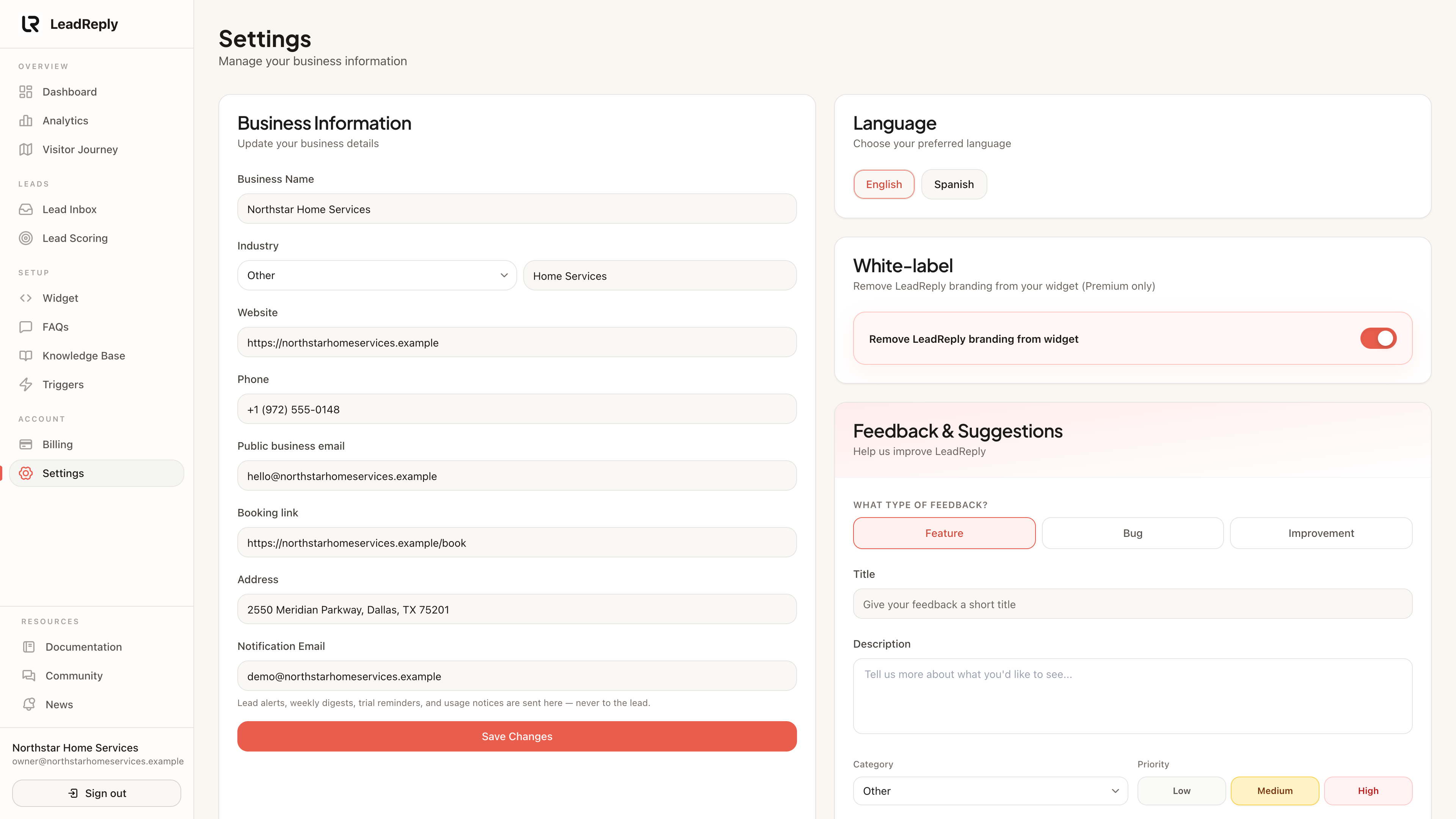
Your account settings control who the AI speaks as, what language visitors see, and where lead notifications go.
Business profile
The business name, description, you provided during onboarding live here. This is a primary source for the AI's answers, so keep it accurate — if you extend hours or add a service area, update it the same day.
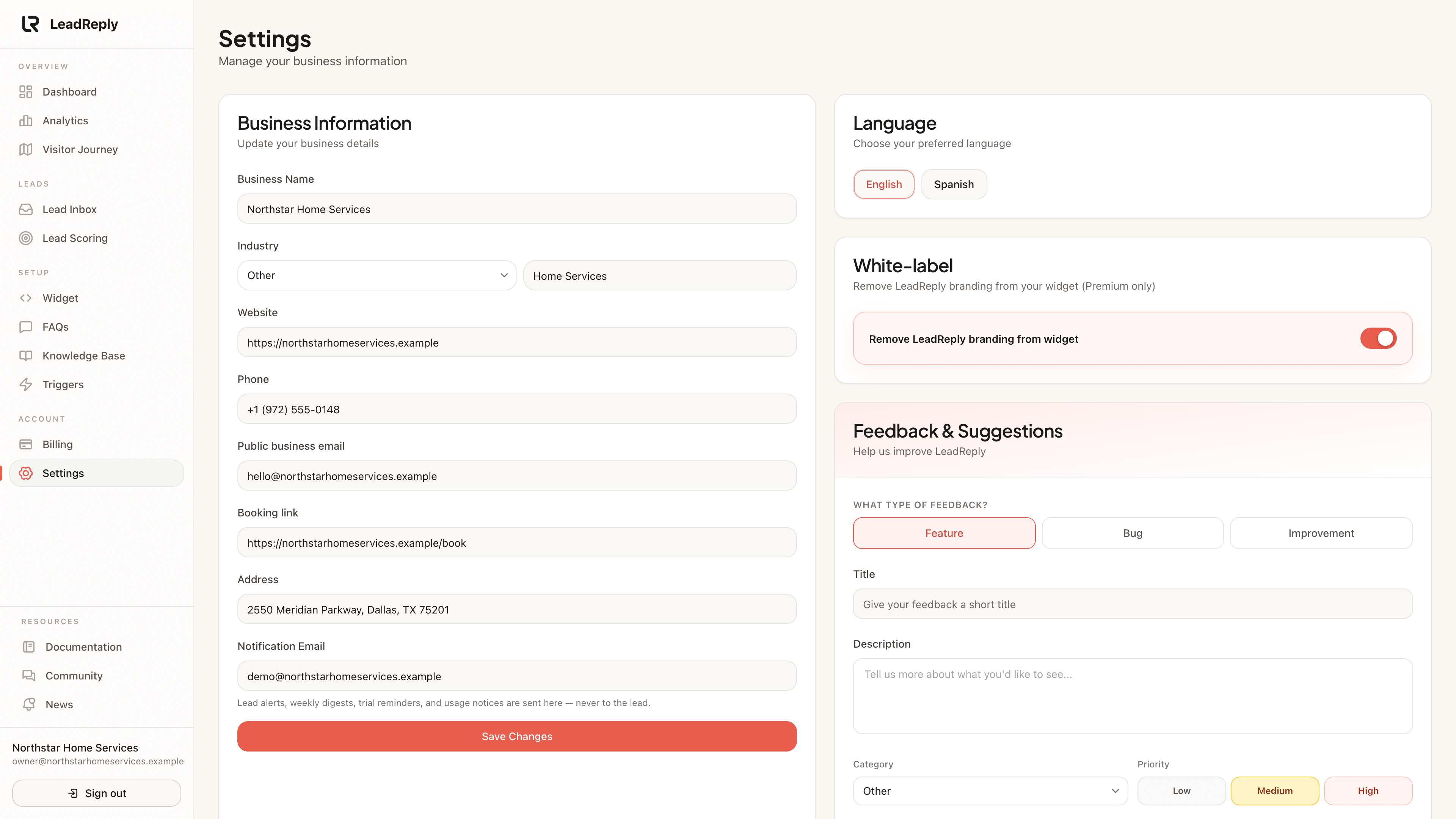
Editing this later works exactly like onboarding: save, and the widget picks up changes on visitors' next page load.
Language
LeadReply's dashboard is available in English and Spanish. The widget greets and answers in the language you choose for your business. Mixed-language questions are answered in the language of the question whenever possible.
Notifications
Lead notification emails go to your account email address. Each new captured lead triggers one email containing the visitor's details and conversation summary, so you can follow up fast. Make sure mail from LeadReply isn't landing in spam — whitelist our address if needed.
Tip
Security basics
- Keep your password unique to LeadReply.
- Your widget key identifies your account on your website — don't publish it anywhere except your own site's source.
- Log out on shared computers; sessions persist for convenience otherwise.
Questions about your data? See the privacy policy or email help@leadreply.xyz.
Media
Previous
Plans & billing
Starter, Pro and Premium — trials, limits and changes
Next
Questions & answers
Ask anything — the team and other owners answer here
Questions & answers
Ask about this page — the LeadReply team and other readers can answer and upvote.
Log in to ask a question, reply, or upvote. Reading is open to everyone.
Loading discussion…