
Documentation/Customization
Customization
Make the widget feel like part of your website — brand colors, greeting text, position on screen, and which pages it shows on.
Where to customize
Everything lives under Dashboard Widget. Pick a widget at the top, then use the three tabs: Assistant, Look and feel and Where it shows. Changes . Switch the preview between Desktop and Mobile to check both. Click Save changes in the bar at the bottom. You never need to touch the snippet on your website again; visitors see the new version on their next page load.
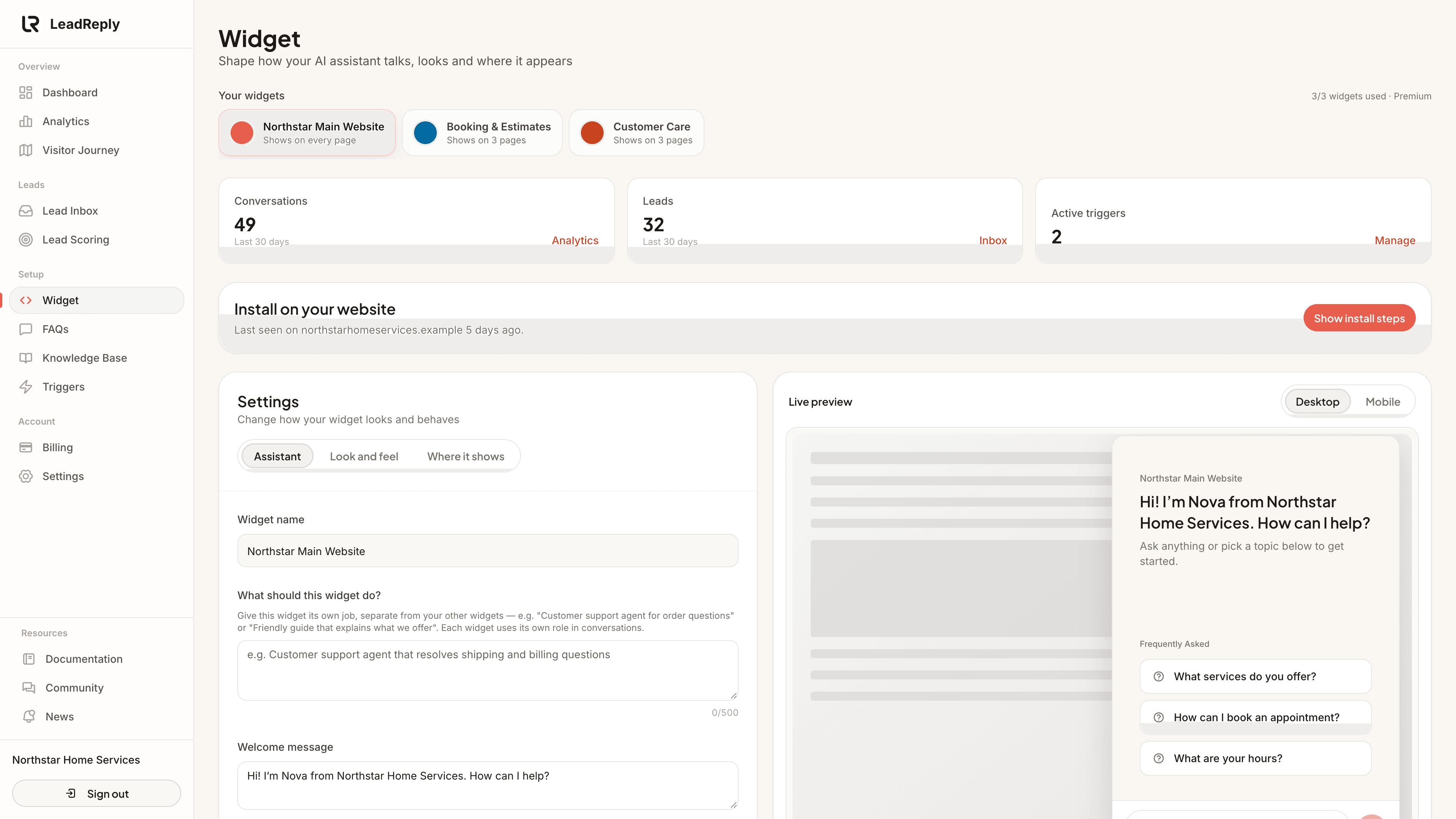
Above the settings, each widget shows its conversations and leads for the last 30 days and how many triggers are active, with links to Analytics, the Lead Inbox and Triggers.
Assistant
- What should this widget do? Give the widget its own job, such as “Booking assistant for estimates”. See Several agents, one business.
- Welcome message: the first message visitors read. Keep it short and human.
- Assistant tone: friendly, professional or concise. This applies to every widget.
- Booking link: the AI offers it when a visitor wants to book.
- Extra AI instructions: optional rules, like “Always mention our free consultation”.
Tip
Look and feel
- Brand color: one color for the button, header, messages and actions. Open Customize colors to set the header, bubbles, input area and buttons separately.
- Theme: light, dark, or automatic to follow the visitor's device.
- Position: any of the four corners of the screen.
- Button size: small, medium or large.
- White label (Premium): hide the “Powered by LeadReply” line on all your widgets.
Display pages
On the Where it shows tab you control exactly which pages show the widget. Common setups:
- All pages (default) — best coverage, recommended for most businesses.
- Only key pages — e.g. just your services and contact pages, if you only want chat where purchase decisions happen.
- A whole section — end a path with
/*to include that page and everything below it.products/*covers every product page in a Shopify store, andblog/*covers every post.
Paths match exactly otherwise: pricing shows the widget on /pricing only, and leaving the path blank means just your home page.
If a page doesn't show the bubble even though it's installed, check this list first — that's almost always the cause.
Multiple widgets
The Premium plan supports multiple widgets — useful when you run more than one site, or want different greetings per landing page (e.g. one tone for ads traffic, another for organic). Each widget has its own key and its own customization; leads all land in the same dashboard. To remove a widget, use Delete widget at the bottom of its settings.
Better yet, each widget can act as its own AI agent with a distinct purpose — a support agent here, a sales agent there — all drawing from the same business knowledge. See One business, several AI agents, and Plans & billing for plan limits.
Media
Previous
Install with AI
Prompts for AI code editors, Wix, Squarespace, WordPress and Shopify
Next
Several agents, one business
Support vs sales widgets — each with its own job and shared knowledge
Questions & answers
Ask about this page — the LeadReply team and other readers can answer and upvote.
Log in to ask a question, reply, or upvote. Reading is open to everyone.
Loading discussion…