
Documentation/Triggers & proactive chat
Triggers & proactive chat
Most visitors never click a chat bubble on their own. Triggers show the right invitation at the right moment.
Why triggers matter
Many visitors never click a chat bubble on their own. A trigger shows when a visitor does something you choose. If they click it, the chat opens and the conversation starts from your message.
When a trigger can appear
- After a delay: a set number of seconds after the page opens. Use 0 to show it straight away.
- Scroll depth: once the visitor has scrolled a percentage of the page.
- About to leave: when the mouse moves towards closing the tab.
- Page views: after the visitor has seen a number of pages.
- Button click: when they click an element you name with a CSS selector, such as
#pricing-button. - Inactivity: after they have been idle for a number of seconds.
Any trigger can be limited to one page with Only on this page, for example /pricing. Leave it blank for every page.
How to set one up
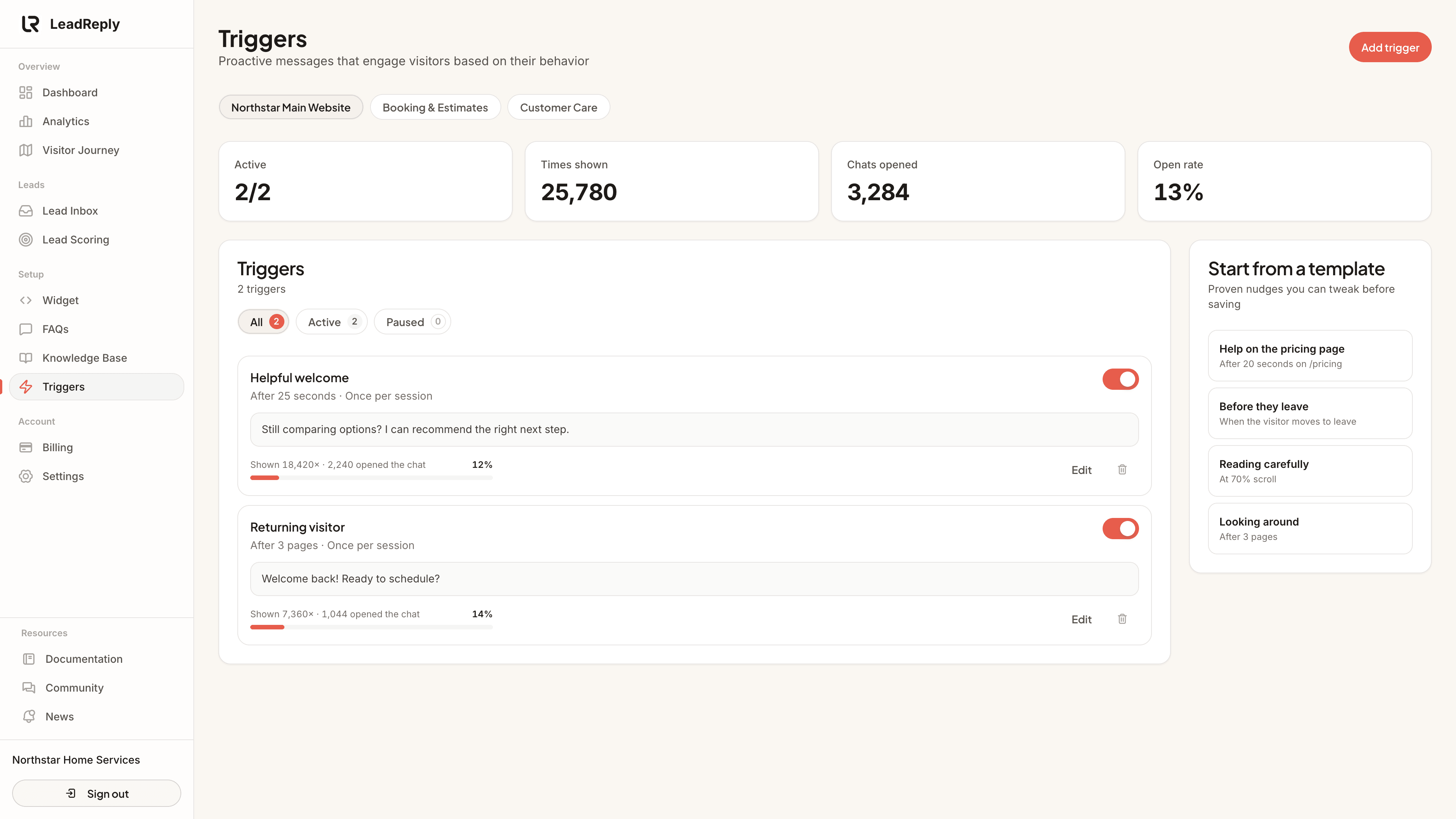
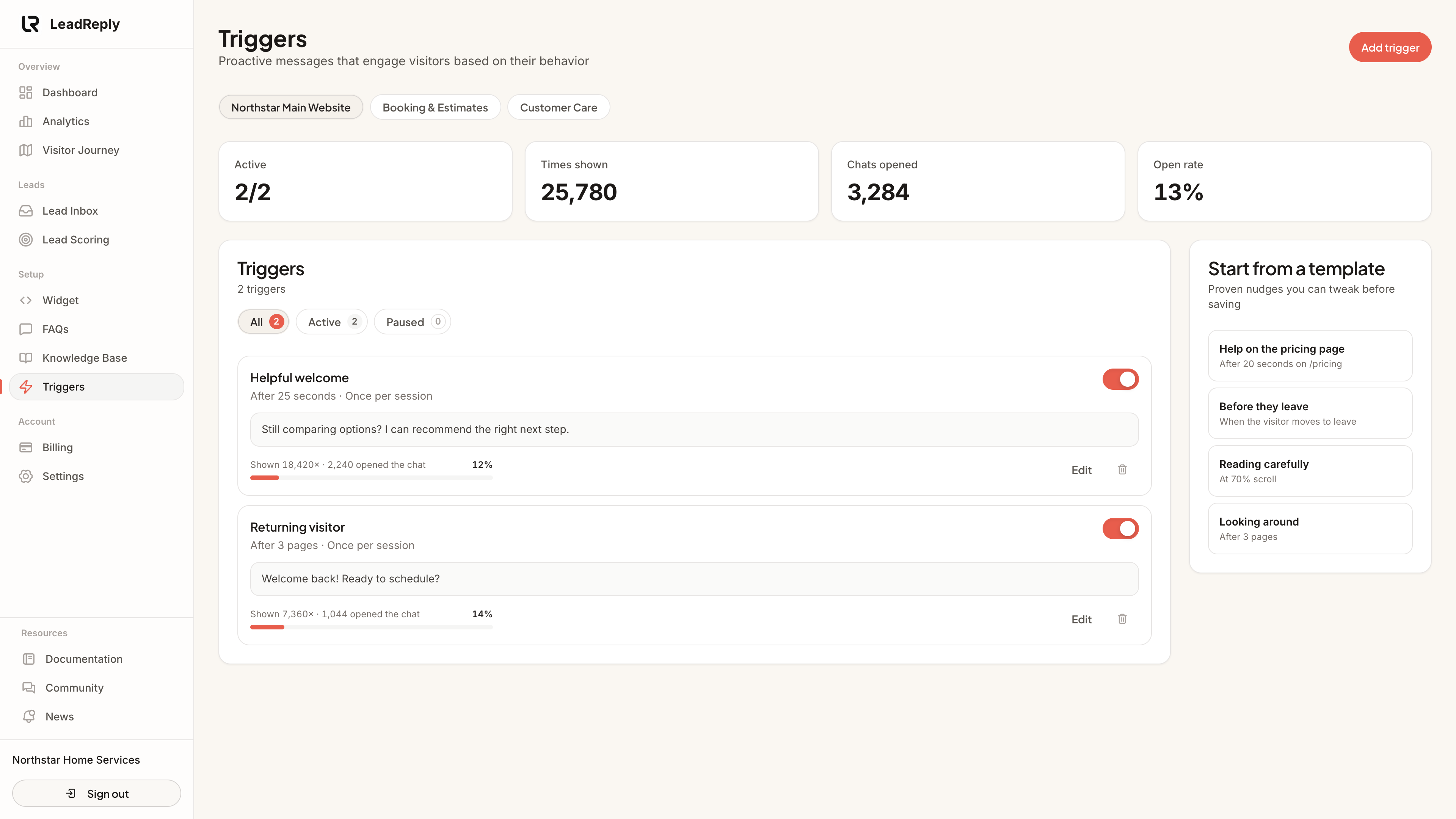
- Go to Dashboard Triggers. If you have several widgets, pick one at the top.
- Click a template under Start from a template, or Add trigger to start from scratch.
- Choose when it should appear and write the message. The preview on the right shows how it will look next to your chat button.
- Pick a frequency: once per session, once per day, once ever, or every time.
- Save. Use the switch on any trigger to pause it without deleting it.
When several triggers match at once, the one with the higher priority (0–10) wins.
Templates
- Help on the pricing page: after 20 seconds on your pricing page, offer to point them to the right option.
- Before they leave: when they move to leave, offer a free quote. Shown at most once a day.
- Reading carefully: at 70% scroll, offer to answer a question about what they are reading.
- Looking around: after 3 pages, offer to help them narrow it down.
Templates only fill in the form. Change the wording and timing before you save.
Important
Measuring results
Each trigger shows how many times it was shown, how many visitors opened the chat from it, and the open rate. The cards at the top add these up for the selected widget. An open is not a lead: check whether triggered conversations end up in your Lead Inbox, and compare periods in Analytics.
Media
Previous
Several agents, one business
Support vs sales widgets — each with its own job and shared knowledge
Next
Continued conversations
Returning visitors pick up their previous chat where it left off
Questions & answers
Ask about this page — the LeadReply team and other readers can answer and upvote.
Log in to ask a question, reply, or upvote. Reading is open to everyone.
Loading discussion…